
This article will help you to set up a corporate email on your cell phone with Gmail:
1. You must check that your mail is working properly with Webmail, you can see the article ¿How-to-set-up-my-corporate-mail?
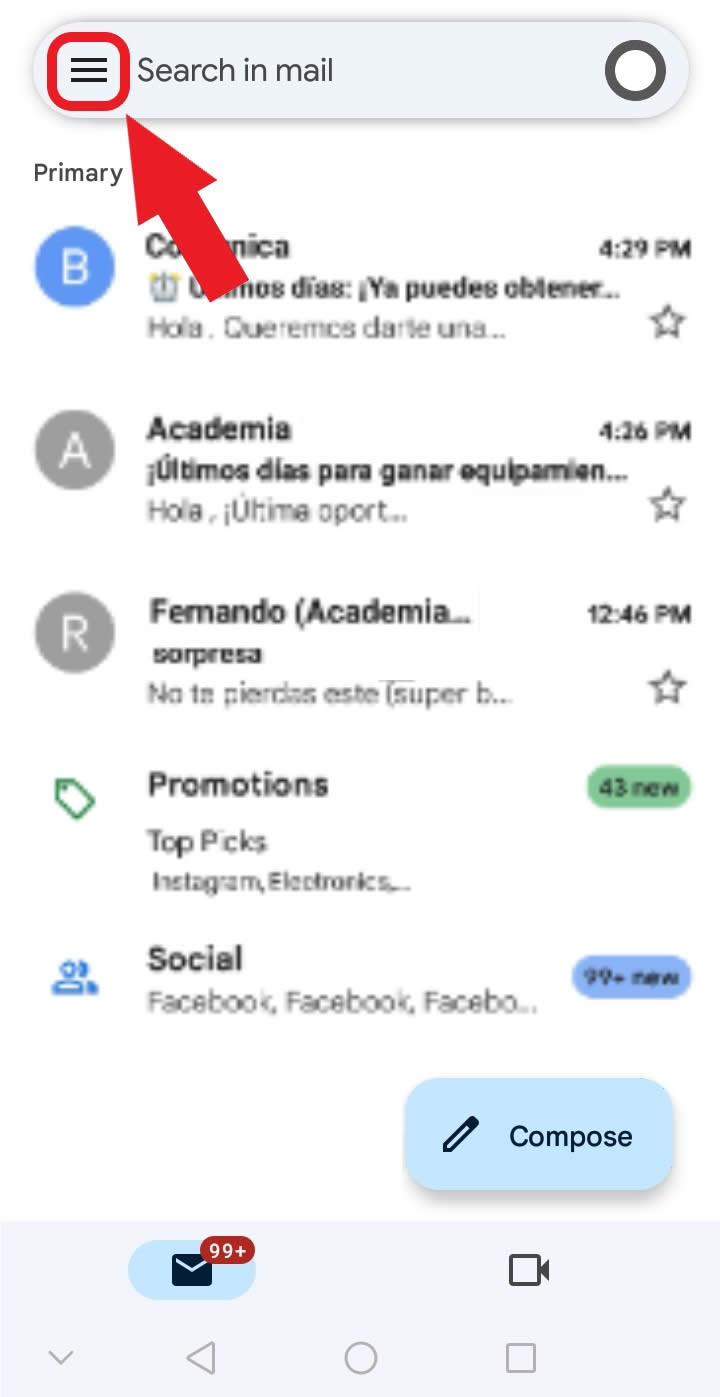
2. Log in to your mail application, in this case "Gmail". Click on the toolbar.
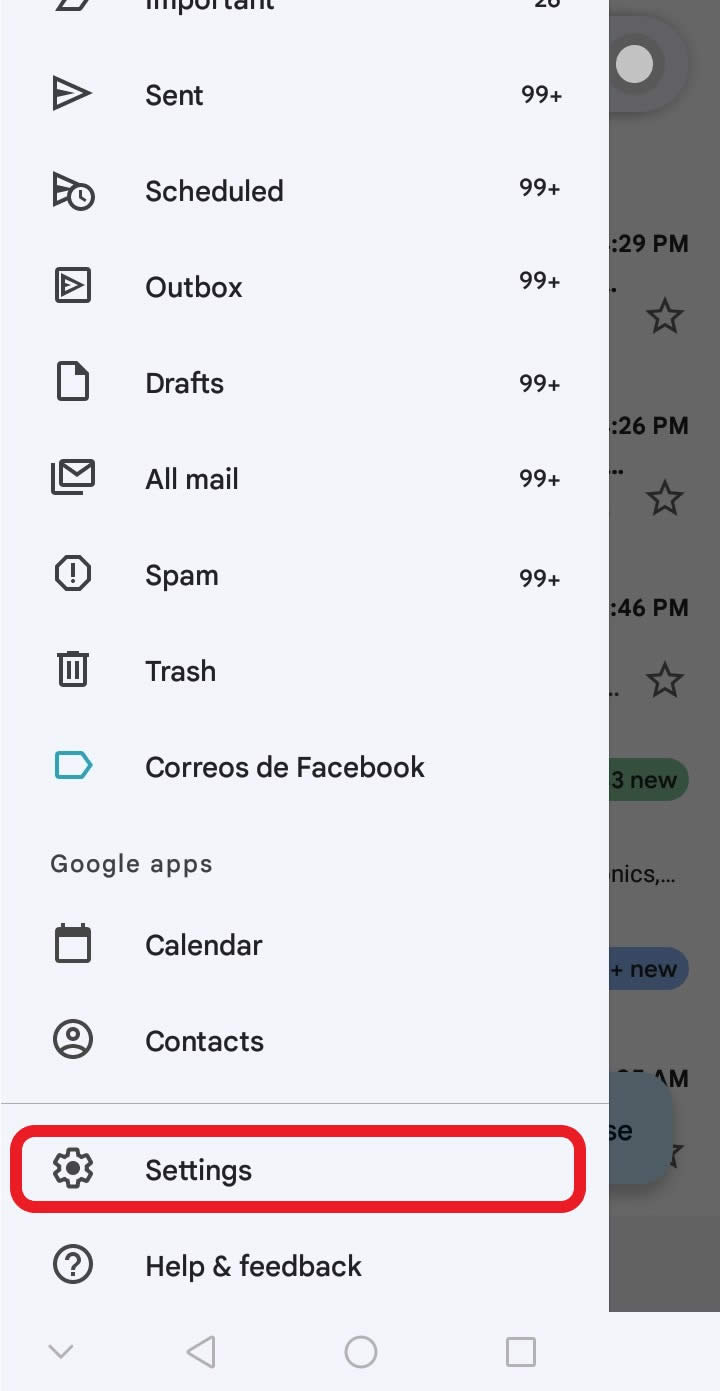
3. Locate the "Settings" option to add a new email in the application.
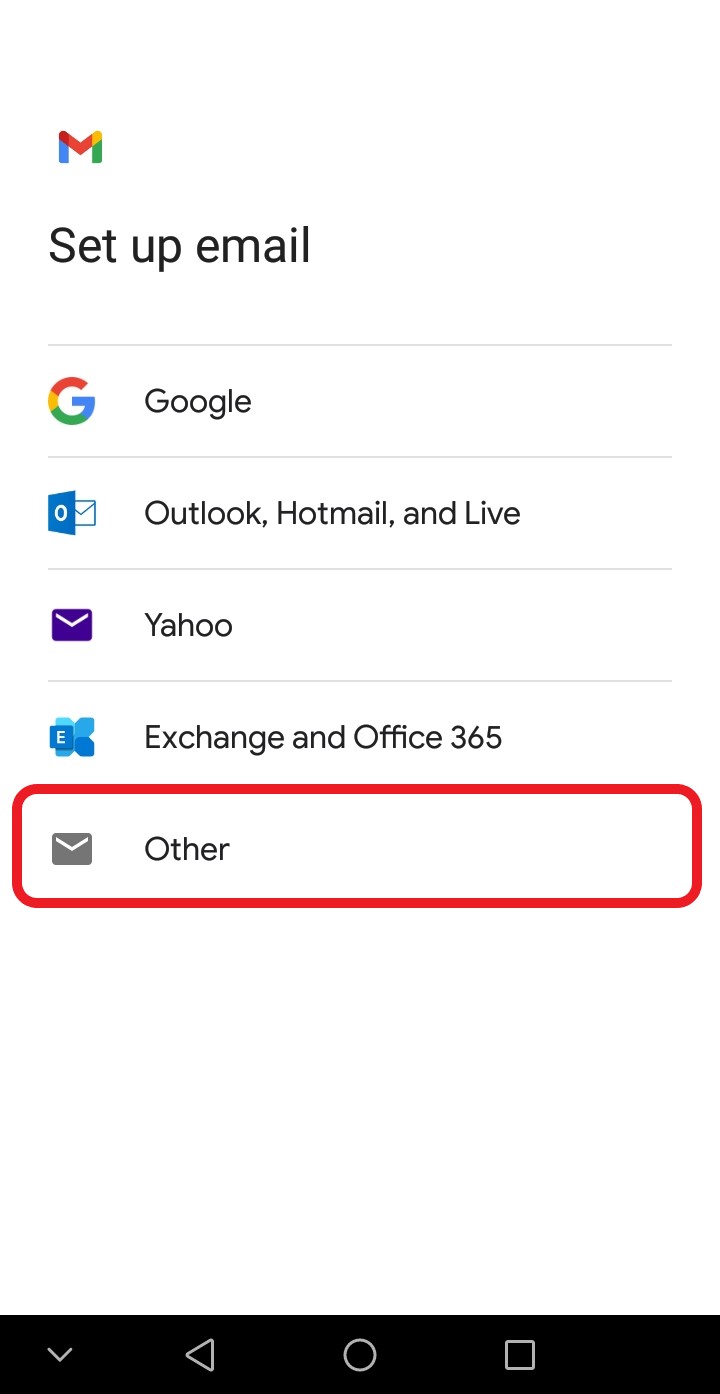
4. You have to select the "Other" option, to add your corporate email.
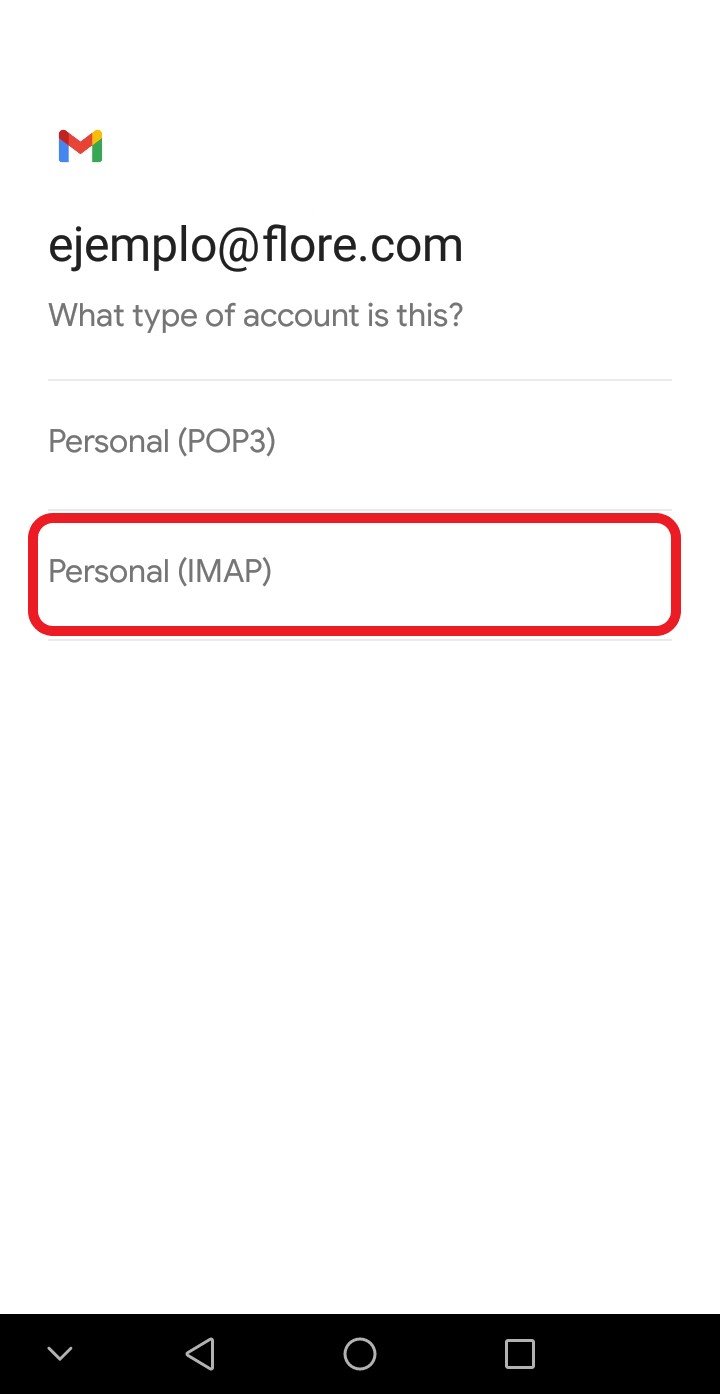
5. You must enter the corporate email that you want to add in this case.“[email protected]” .
6. Select the type of account you want, for mobile devices the recommended option is "IMAP".
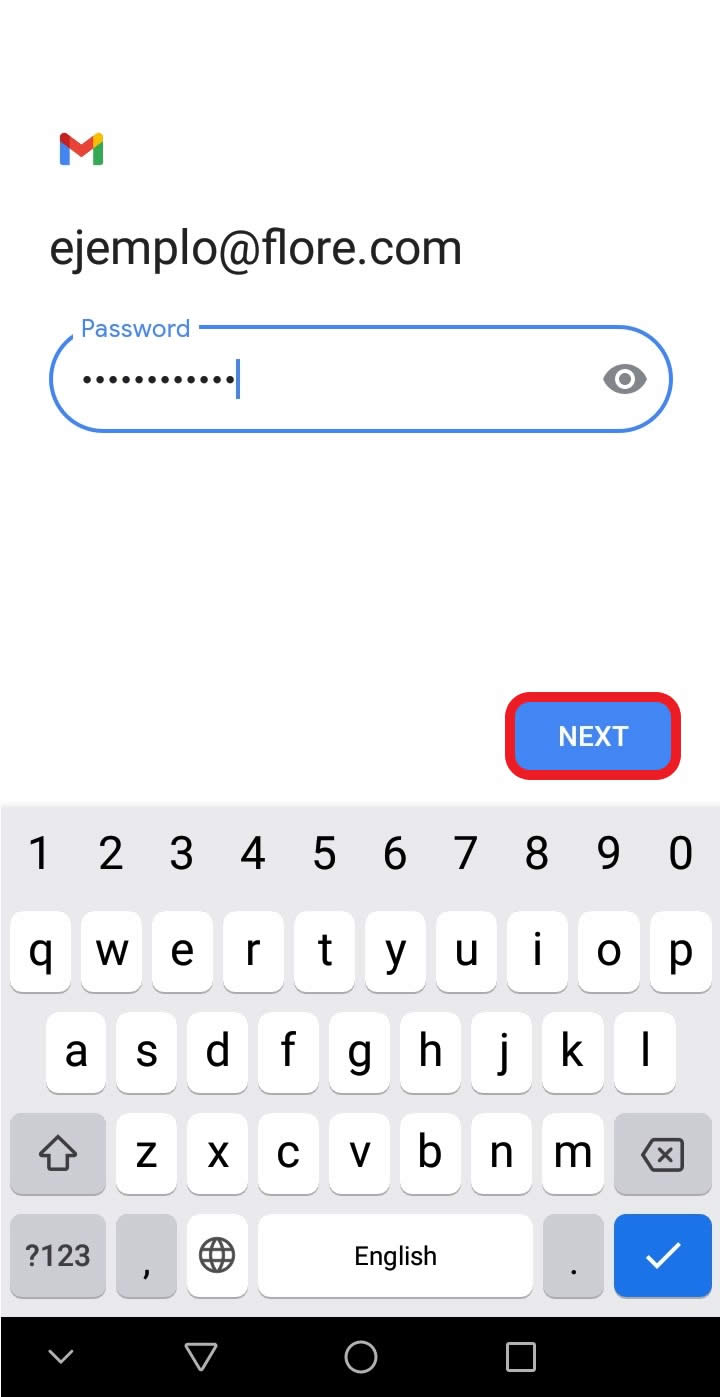
7. Enter the password of the email you registered at the beginning. Press the next button.
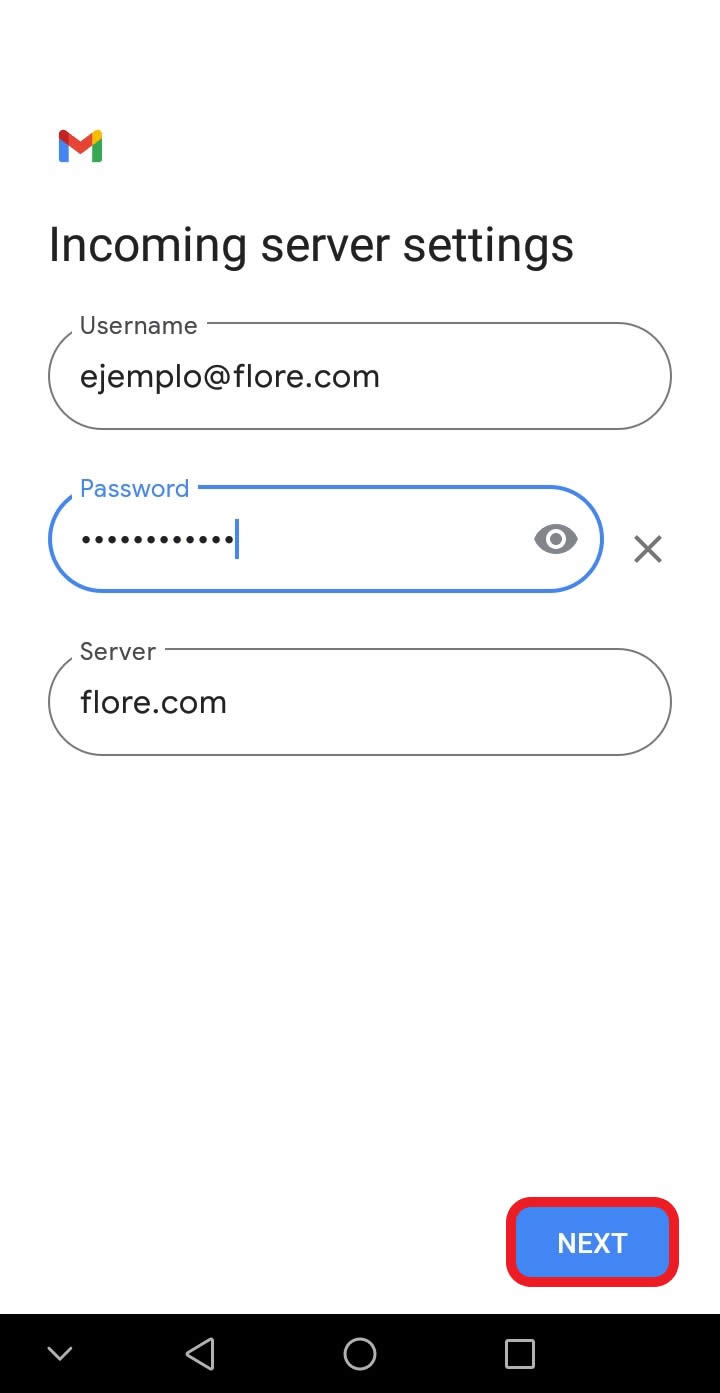
8. You must enter your incoming server data such as: "Username", this is the corporate email you are adding, "Password", this is the corporate email password, and "Server", your server is the combination of "mail." Followed by your domain such as "flore.com", in this case the server would be "mail.flore.com " or simply your domain if the application allows it.
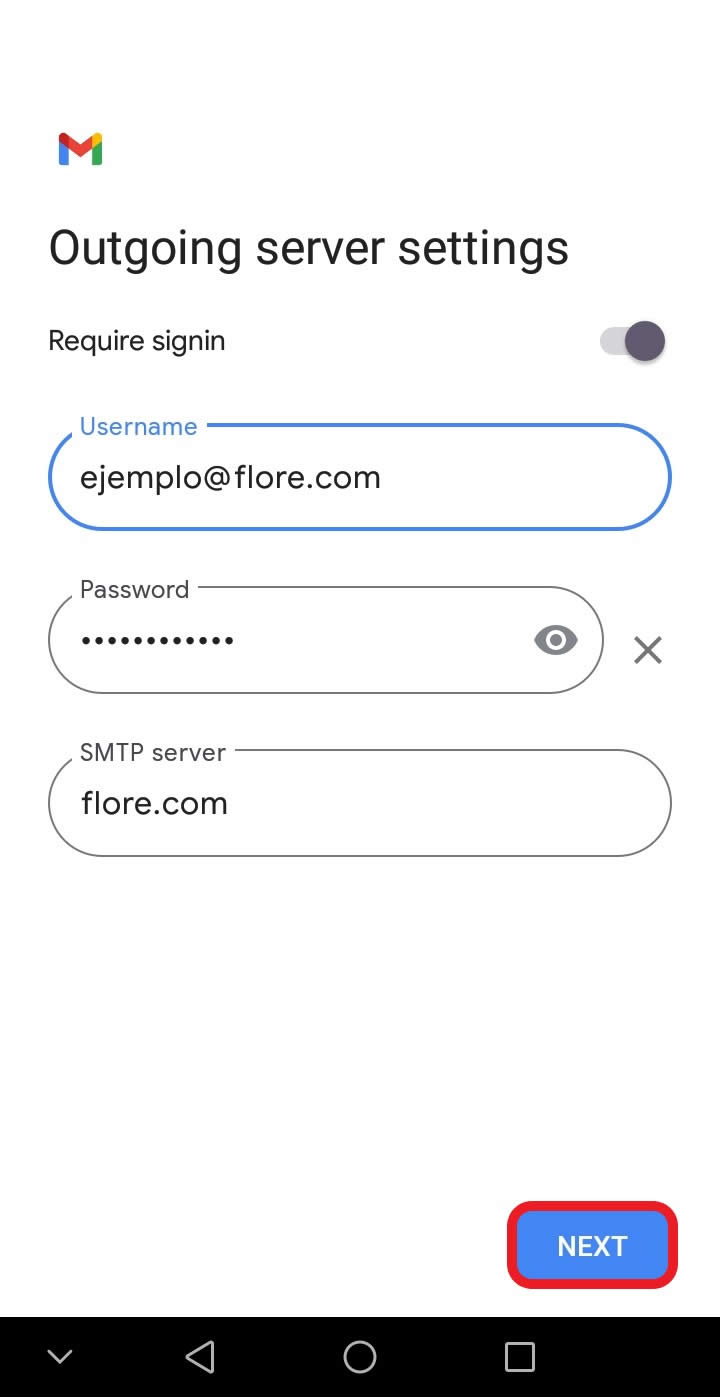
9. You also configure the outgoing server with the same data you entered in the incoming server.
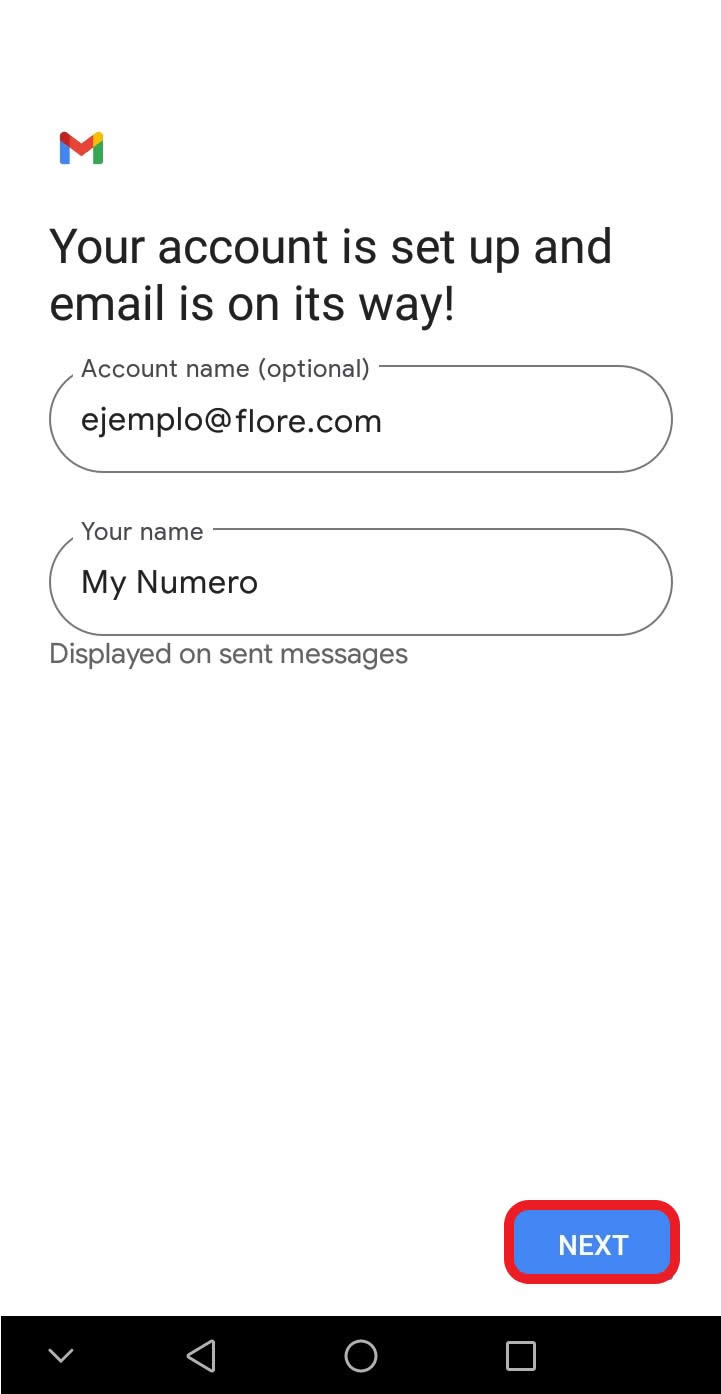
10. Configure the following options as you wish, you can enter an account name and a contact number, in case you have more options use the default values.
11. At the end you will see the corporate email that was added to the mailing list.
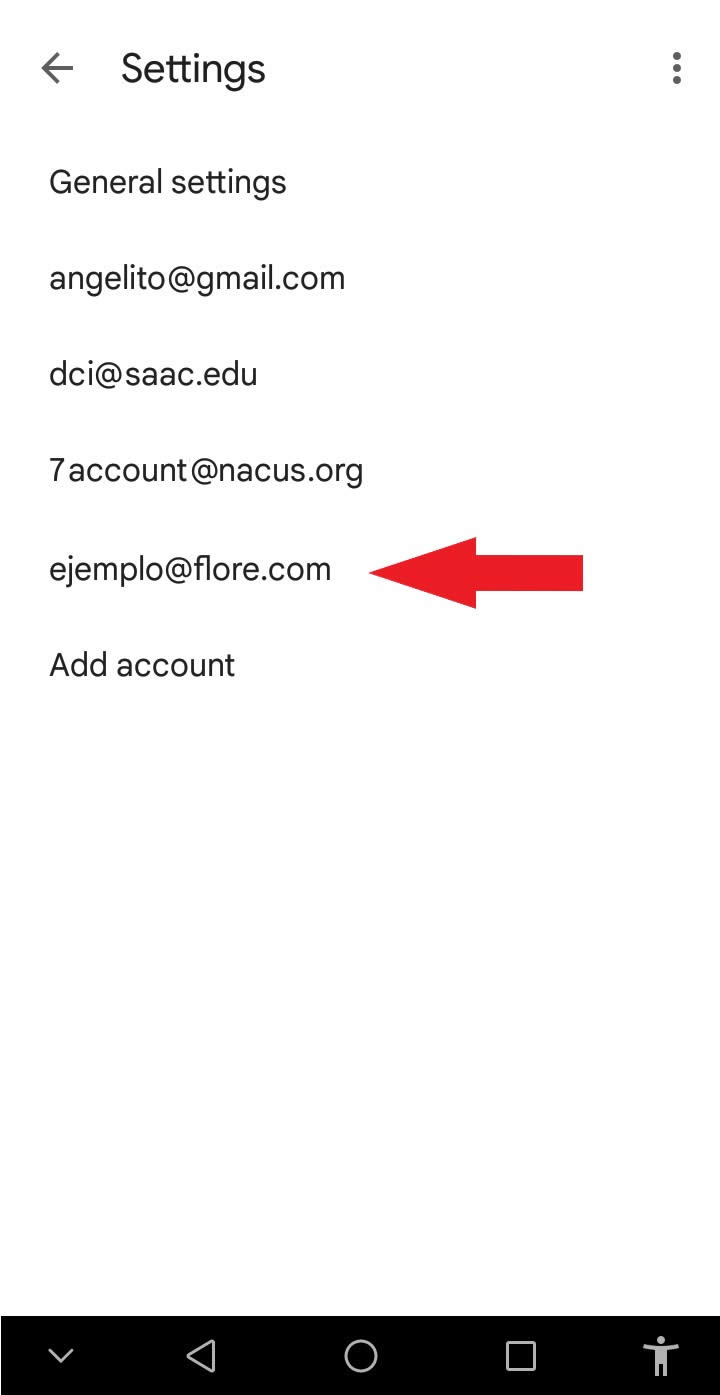
At the end of the configuration, you will be able to send and receive messages from your Gmail application, the configuration is similar for the other applications, with the difference that you must specify the incoming and outgoing ports, in case you choose "IMAP", you must use the ports "993" in your incoming server and "465" in your outgoing server.
